How to Use a Pomodoro Timer on iPhone
You have a task you keep circling, a phone next to you, and a plan to work in 25-minute blocks. Here is how to run those blocks on an iPhone without the phone becoming the next distraction.
 Rise is an iPhone appPoint your iPhone camera at the code to install it.
or text me the link
The short answer
The iPhone has no Pomodoro mode, and you do not need one. The Clock app's timer runs the method on its own: set it for 25 minutes, work until it rings, take a 5-minute break, and after four rounds take a longer break of 20 to 30 minutes. Those are the numbers from Francesco Cirillo's original technique. The only parts the phone cannot do for you are starting the next round and keeping you off the phone during the breaks.
If you want one tap instead of setting the time by hand, a Shortcut can start a 25-minute timer (see the Shortcut section). If your iPhone sits on a charger at your desk, StandBy can show the countdown large enough to read from across the table (see StandBy). The rest of this guide covers how to run the rounds well, and what to change when the method stops working for you.
| Way to run it | Good for | Section |
|---|---|---|
| Clock app timer | Any iPhone, no setup | Clock |
| Shortcuts | One tap or Siri | Shortcut |
| StandBy on a charger | A desk clock view | StandBy |
| Rise focus session | The first block of the day | Rise |
How the Pomodoro Technique works
Cirillo created the technique in the 1980s with a tomato-shaped kitchen timer, which is where the name comes from (pomodoro is Italian for tomato). The classic sequence has six steps:
- Pick one task. One thing that deserves your full attention, not a list.
- Set the timer for 25 minutes and promise yourself you will not interrupt yourself until it rings.
- Work until it rings. If something else comes to mind, write it on paper and go back to the task.
- Mark the round done with a checkmark on paper.
- Take a short break of 5 minutes. Stretch, walk, get a drink. Something that is not work.
- After four rounds, take a longer break of 20 to 30 minutes.
Cirillo himself says the 25 minutes are not the point. On his site he calls the 25-minute sessions "one expression" of a broader idea about how you relate to time, so changing the length to suit the task is fair. What matters is that the block has a fixed end you decided on before you started, and that the break is a real break.
Why fixed breaks help
The technique sounds like a productivity trick, but there is some research behind the breaks. In a 2023 study in the British Journal of Educational Psychology, 87 university students studied for a day under one of three rules: take breaks whenever they liked, take a 6-minute break after every 24 minutes (a Pomodoro-style schedule), or take a 3-minute break after every 12 minutes. The students who chose their own breaks studied in longer stretches and took longer breaks, and they reported more fatigue and distraction and less concentration and motivation. Task completion was the same across groups, so the fixed-break students got the same work done in less time.
A 2022 meta-analysis in PLOS ONE pooled 22 study samples on micro-breaks, defined as breaks of no more than 10 minutes. Short breaks gave a small but real lift in energy and a small drop in fatigue. The effect on performance was not significant overall, and longer breaks were linked to larger performance gains. The authors suggest that recovering from very draining work may need breaks longer than 10 minutes, which fits the longer break after four rounds.
In plain terms: the timer protects you from two opposite mistakes. It stops you from grinding on long after your focus has gone, and it stops a 5-minute break from quietly turning into 40.
Run it with the Clock app
This works on any iPhone and needs nothing installed. The steps below are for iOS 27, the current version, and the Clock timer has worked the same way for several versions.
- Open the Clock app and tap Timers.
- Set 25 minutes.
- Optional: tap Label and name it after the task, so the countdown tells you what you are supposed to be doing.
- Optional: tap When Timer Ends and pick a sound you will notice but not hate. You will hear it many times a day.
- Tap Start, put the phone face down, and work.
- When it rings, set 5 minutes and start the break the same way.
A running timer stays visible in the Dynamic Island on iPhones that have one, and Live Activities show on the Lock Screen, so you can check the time left without unlocking the phone. That matters more than it seems: every unlock is a chance to open something else. How to keep a focus timer on your iPhone Lock Screen covers that part in more detail.
Make a one-tap Pomodoro Shortcut
The Shortcuts app has a Start Timer action, and a shortcut can run with a tap or by asking Siri. That gives you a 25-minute button without touching the timer wheels each round.
- Open Shortcuts and create a new shortcut.
- Add the Start Timer action and set it to 25 minutes.
- Name the shortcut something you can say, like "Pomodoro".
- Make a second shortcut the same way with 5 minutes, named "Short break".
If you set the duration to Ask Each Time, the shortcut asks for a length when you run it through Siri, which is handy if you switch between 25-minute and longer blocks. The timer it starts is the normal Clock timer, so it behaves the same as the steps above.
See the countdown in StandBy
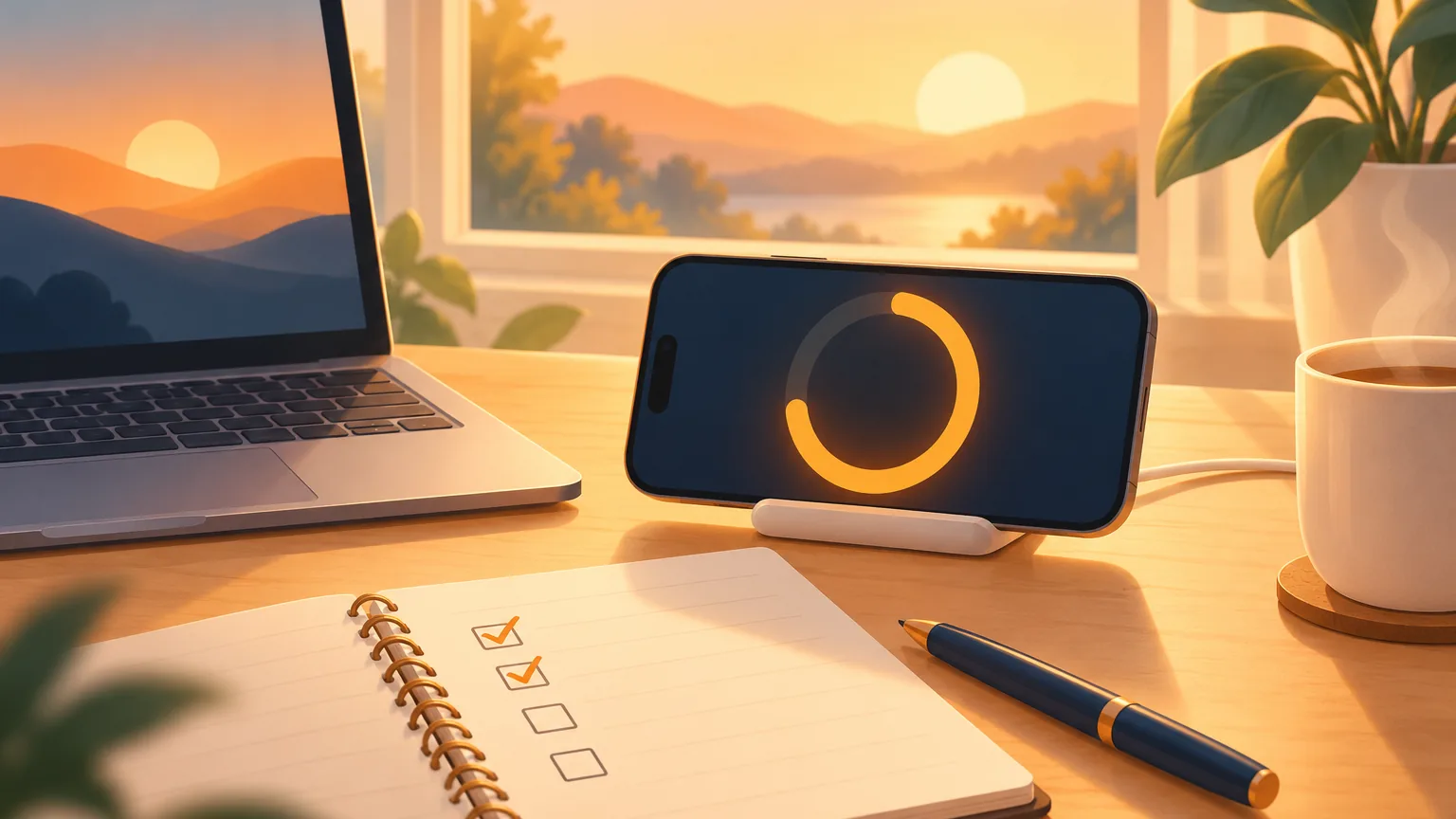
StandBy turns an iPhone into a full-screen display when it is on its side and charging. Apple built it to be read from a distance, and it shows Live Activities full screen. On a desk stand next to your laptop, that makes a running timer read like a kitchen timer instead of a phone. On iPhones with the Always-On display, StandBy stays on, so the countdown does not go dark mid-round.
The trade-off: a phone propped up and lit at eye level is easier to pick up. If you find yourself reaching for it, lay it flat and face down and use sound to know when the round ends.
When the Pomodoro timer is not working for you
Usually the timer is fine and the routine around it breaks. The fixes, by symptom:
- Breaks keep running long. Start the break timer the moment the work timer rings, before you stand up. A break with no end is how a 5-minute pause becomes 40, and in the 2023 study the students who set their own breaks did take longer ones than the fixed-break groups.
- The break turns into scrolling. Cirillo's own answer to what you should do in a break is "Nothing." Stand up, look out of a window, refill your water. A feed is not rest, and it is hard to leave after 5 minutes. How to stop checking your phone first thing in the morning has ways to make the phone less tempting that work at any hour.
- 25 minutes cuts you off mid-thought. Lengthen the block. The study above used 24 minutes, the meta-analysis found longer breaks helped performance more, and Cirillo himself says 25 is one version. 45 on and 10 off is still the same idea.
- You never start the first round. This is the most expensive failure, because there is no round two without round one. Tie the first block to something that already happens every day (see the next section).
- The Lock Screen countdown disappeared. For a timer app's Live Activity, iOS ends it after eight hours and removes it from the Lock Screen within twelve. A single Pomodoro is far shorter, so if a countdown vanishes mid-round, check Settings for that app and make sure Live Activities are turned on.
Protect the first block of the day
The hardest Pomodoro is the first one, because nothing tells you when to start it. A morning block solves that by hanging it off something that already happens every day: your alarm.
Rise is an alarm app built around that idea. It is not a Pomodoro cycle timer, and it is worth being clear about what it does and does not do:
- Stopping your Rise alarm opens a focus timer instead of the Lock Screen. You choose a length from 5 to 120 minutes in 5-minute steps, so a 25-minute first round or a 50-minute deep-work block both fit.
- The countdown runs as a Live Activity on the Lock Screen, and in the Dynamic Island on iPhones that have one. The screen stays awake while the timer runs, and you can pause and resume.
- When the timer ends and you want more, Rise Pro lets you extend the block by 5, 15 or 30 minutes.
- Rise runs one focus session per day. Outside the morning, a Focus now button on the Home screen starts it if you have not done it yet. For the rounds after that, use the Clock timer or your Shortcut.
- Focus sessions are part of Rise Pro, and your first morning is free to try.

Used this way, Rise handles the round you are most likely to skip, and the Clock app handles the rest. If you want a longer structure for that first hour, the 5AM Club 20/20/20 routine splits it into three timed blocks, and how to build a morning routine that sticks covers keeping it going past the second week.
A two-hour session, written out
If you are starting from zero, copy this once and adjust after:
- Write the one task at the top of a sheet of paper, with four checkboxes under it.
- Phone face down, or on a stand in StandBy. Start 25 minutes.
- When it rings, tick a box and start 5 minutes. Stand up.
- Repeat until four boxes are ticked, about two hours in total.
- Take a 20 to 30-minute break away from the desk, then decide whether a second set is worth it.
After a week, look at where it broke. If the breaks ran over, start the break timer sooner. If you never got past round two, shorten the task. If 25 minutes felt like a fence, move it out. The timer is the easy part. The habit of starting it is the part worth protecting.
Frequently asked questions
How do you use a Pomodoro timer?
Pick one task, set a timer for 25 minutes and work without interrupting yourself until it rings. Take a 5-minute break, then start again. After four rounds, take a longer break of 20 to 30 minutes. Keep a tally on paper so you know when the long break is due.
Is there a Pomodoro timer on iPhone?
Not as a separate mode, but the Clock app's timer does the job: set 25 minutes, then 5 minutes for the break. A running timer stays visible in the Dynamic Island on iPhones that have one, so you can check it without unlocking.
Can I make a Pomodoro timer with an iPhone Shortcut?
Yes. In the Shortcuts app, create a shortcut with the Start Timer action set to 25 minutes, and a second one set to 5 minutes for breaks. You can run them with a tap or by asking Siri.
Can a Pomodoro timer show in StandBy on iPhone?
Yes. StandBy works when the iPhone is on its side and charging, and it shows Live Activities, such as a running timer, full screen. On iPhones with the Always-On display, StandBy stays on, so the countdown stays visible.
Why is my Pomodoro timer not working?
Usually the timer works and the routine around it slips: breaks run long, the break turns into scrolling, or the first round never starts. Start the break timer the moment the work timer rings, keep breaks away from the phone, and tie the first round to something that already happens daily, like your alarm.
What is the difference between a Pomodoro and a regular timer?
None in the timer itself. A Pomodoro is a timer used with a rule: a fixed work block, a short break, and a longer break after four rounds. The rule is what makes it work, so any timer, including the Clock app's, can run it.
Sources
- The Pomodoro Technique, devised by Francesco Cirillo (Maynooth University handout)
- Francesco Cirillo, The Pomodoro Technique (official site)
- Biwer et al. (2023), Comparing 'Pomodoro' breaks and self-regulated breaks, British Journal of Educational Psychology
- Albulescu et al. (2022), Give me a break! Micro-breaks meta-analysis, PLOS ONE
- Apple: iOS 17 is available today (StandBy)
- Apple: iPhone 14 Pro and the Dynamic Island
- Apple Developer: Displaying live data with Live Activities
- Apple Support: What's new in Shortcuts (Start Timer)
- Apple Support: Intro to Shortcuts
- Apple Support: Set timers in Clock on iPhone
- Apple: iOS 27