iCloud backup for your settings, streak and journal
Rise saves your settings, your streak history and your journal entries to your own iCloud in the background, free. Set up a new iPhone, open Rise, tap Restore from Backup, and your streak is still there.
 Rise is an iPhone appPoint your iPhone camera at the code to install it.
or text me the link
Rise is an iPhone appPoint your iPhone camera at the code to install it.
or text me the link
What iCloud backup does
Rise keeps one small backup file in its own iCloud container, tied to your Apple Account. It holds your settings, every session with its reflection text, and your streak records. When you install Rise on a new iPhone, the app finds that file before onboarding and offers to restore it. Nobody signs up for anything, and the file is not sent to Rise or to any server we run.
The built-in Clock app is built around alarms and keeps no habit history of days, streaks or written reflections. That is a fair job for a plain alarm. Rise also records days, streaks and written reflections, and those are the things you would hate to lose, so it backs them up separately. See how streaks work and the reflection journal for what is being kept.
Backup is free. You do not need Pro for it.
How it works, step by step
Backup is on by default. You do not have to do anything to start it.
- Finish at least one session. Rise skips the backup while you have no sessions, so a fresh install cannot overwrite a real backup with an empty one.
- Leave the app. Rise writes the backup when it moves to the background, at most once an hour.
- On the new iPhone, sign in to the same Apple Account and install Rise from the App Store.
- Open Rise. During the launch splash it looks for your backup for up to 3 seconds.
- On the Welcome Back screen, read "We found a backup of your data in iCloud. Would you like to restore it?" and tap Restore from Backup.
- Rise restores your settings, sessions and streak records, marks you as already onboarded and takes you to Home. If your alarm is on, iOS asks for alarm permission again, because permission belongs to each device.
Tap Start Fresh instead and Rise onboards you as a new user and turns iCloud backup off.
Options and what is saved
There is one switch. Open Settings, find Data & Privacy, and use the iCloud backup toggle. The row only appears when iCloud is available on the phone.
| Part | Saved? | Notes |
|---|---|---|
| Settings | Yes | Alarm time and sound, focus length, reflection switch, your motivation and goal, Wind Down and wake-up check settings, reminder switches |
| Sessions and journal text | Yes | Every session, including reflection text and whether the timer completed |
| Streak records | Yes | Completed days and freeze use, plus whether a freeze is available |
| Wind Down sessions | No | Your Wind Down settings come back; the past evening sessions do not |
| Pro purchase | No | Not in the file; your purchase stays with your Apple Account |
| Apple Health data | No | Not in the file; Health data lives in the Health app |
If you switch the toggle back on and a backup already exists in iCloud, Rise asks first: Enable iCloud Backup, "An existing backup was found in iCloud. Enabling backup will overwrite it with your current data." Choose Overwrite or Cancel.
When it helps
You are buying a new iPhone
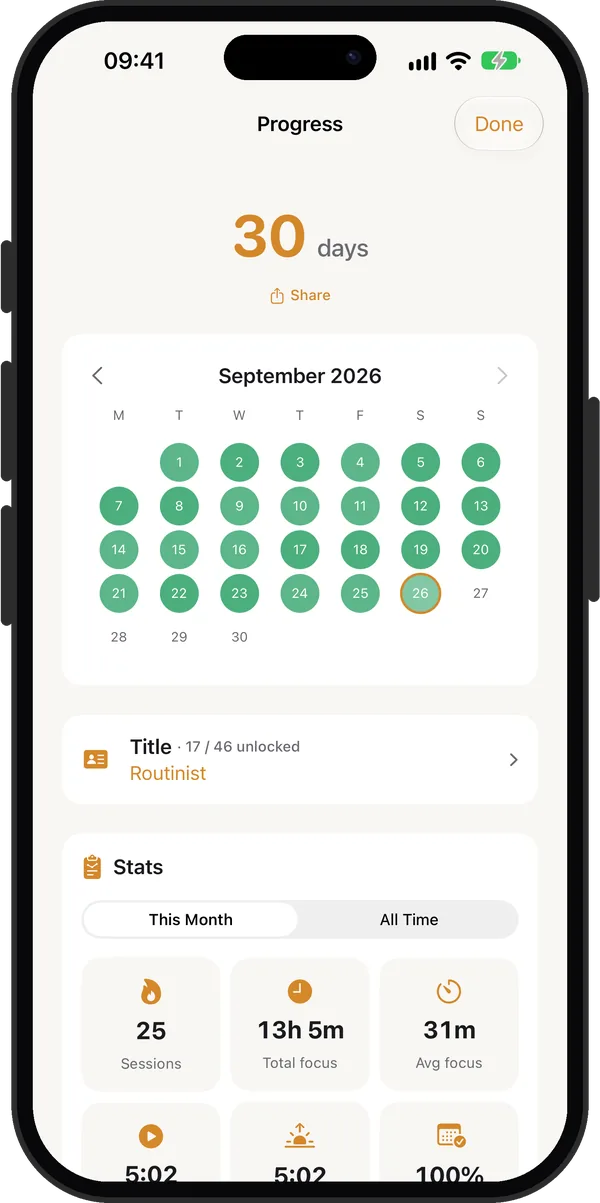
Upgrade day is when streaks usually die. With backup on, install Rise, tap Restore from Backup, and your 30 day run carries on. On the old phone, open Rise and then leave it, at least an hour after your last backup, so the latest sessions are written.
You lost or broke your phone
Rise stores the file in iCloud, so the old phone does not need to be alive. Sign in on the replacement and restore.
You reinstalled to fix something
Deleting an app removes its local data. The backup file stays in iCloud, so the Welcome Back screen offers your history again after you reinstall.
You write real reflections
If you use the journal to track how mornings feel, the entries are worth more over months. Backup keeps them with the sessions they belong to.
You want to follow a long challenge
Habit plans like the 75 Hard morning routine rest on an unbroken count. A phone swap in week six should not reset it.
Limits
- One backup, no history. Rise writes a single file and replaces it. It does not keep older versions, and an automatic backup never replaces one that holds more sessions than the phone has.
- Restore only happens at first launch. The offer appears when onboarding is not completed. There is no restore button in Settings for a phone that is already set up.
- The check can time out. If iCloud takes longer than 3 seconds to answer, Rise carries on as if there were no backup and shows onboarding.
- It can lag behind. Backups run when you leave the app, no more than once an hour. A session finished within an hour of the last backup is saved the next time you leave the app after that hour.
- Restore replaces, it does not merge. Sessions and streak records on the new phone are deleted and replaced with the backup.
- It needs iCloud. If you are signed out, the toggle does not show.
- Alarms are rebuilt. Alarm IDs belong to the old phone, so Rise drops them and schedules fresh alarms on the new one.
For the general iPhone side, Apple's own iCloud Backup page explains what a device backup includes. Rise's file is separate and works with or without it.
Ready to build the habit worth protecting? Read how to build a morning routine that sticks.
Frequently asked questions
Does iCloud back up app data?
Apple says iCloud Backup includes app data for the apps you have downloaded, with an exception: if an app stores its data in iCloud Drive, that data stays in iCloud instead of your iCloud Backup. Rise adds its own backup file in its iCloud container, so your streak and journal do not depend on a device backup.
How do I backup app data to iCloud on my iPhone?
For Rise you do nothing: iCloud backup is on by default, and the Data & Privacy section of Settings has the switch. Rise backs up when you leave the app, at most once an hour. For other apps, Apple's iCloud Backup settings decide what is included.
How do I restore my streak on a new iPhone?
Install Rise, sign in to the same Apple Account and open the app. On the Welcome Back screen tap Restore from Backup. Your sessions, journal text and streak records come back, and you tap through alarm permission once.
Is my Rise backup private?
The file sits in Rise's own iCloud container, linked to your Apple Account. Rise has no account system of its own and does not upload it to a server we run. Apple's own iCloud protections apply to it.
Do I need Pro for iCloud backup?
No. Backup is free for everyone, and it also saves reflections you wrote with Pro. Your Pro purchase itself is not in the backup file and stays with your Apple Account.
Why did Rise not offer to restore my backup?
Rise only looks for a backup at first launch, before onboarding is done, and it waits up to 3 seconds for iCloud. Make sure you are signed in to the same Apple Account with iCloud on, and that the old phone opened Rise at least once with a session logged.
Sources
Keep your streak safe
Get Rise on the App StoreMore features
Log your wake-up time and mindful minutes in Apple Health
Rise Pro saves your wake-up time and each finished focus session of 5 minutes or more to Apple Health as mindful minutes.
A morning focus session that starts when your alarm stops
A focus timer that opens right after your alarm, 5 to 120 minutes in steps of 5, also available any time with Focus now.
Alarm and streak widgets, plus a focus timer in the Dynamic Island
Streak and Next Alarm widgets, a focus timer in the Dynamic Island and on the Lock Screen, and a Start Routine control.