Alarm and streak widgets, plus a focus timer in the Dynamic Island
Rise puts your next alarm and your streak on the Home Screen, and shows a running focus timer on the Lock Screen and in the Dynamic Island. This page covers what each one shows, how to set it up and where it stops.
 Rise is an iPhone appPoint your iPhone camera at the code to install it.
or text me the link
Rise is an iPhone appPoint your iPhone camera at the code to install it.
or text me the link
What widgets and Live Activities do in Rise
Rise ships two Home Screen widgets, a Live Activity for the focus timer and one for Wind Down, and a Control Center control. The widgets show your next alarm time and your streak without opening the app. The Live Activities keep a countdown visible on the Lock Screen and, on iPhones that have a Dynamic Island, in the Dynamic Island.
The built-in Clock app already covers alarms and timers, and it is a fair choice for either. What it does not track is a streak. Rise's widgets show the last days you finished your morning, and its timer is tied to a focus session that counts toward that streak. See focus sessions for the timer itself and streaks for how days are counted.

How to set them up
The Home Screen widgets
- Set your alarm in Rise and finish onboarding. The alarm time is shared with the widgets whenever you save it.
- Touch and hold an empty spot on the Home Screen until the apps jiggle, tap Edit, then Add Widget, and search for Rise. Apple's guide, Add, edit, and remove widgets, covers the general steps.
- Pick Streak or Next Alarm. Both come in one size, small.
- Tap Add Widget. The widget refreshes when your alarm or streak changes, and again at midnight.
The focus timer Live Activity
- Start a focus session in Rise.
- Lock the phone. A Focus Timer panel with a ring and a countdown appears on the Lock Screen.
- On an iPhone with a Dynamic Island, the countdown also shows beside the camera. Touch and hold it to see the expanded view with the ring, the label Focus and the time left.
- Pause the session in Rise. The panel shows the time left with Paused, and the countdown stops.
- When the session ends or you stop it, Rise removes the panel at once.
There is nothing to turn on inside Rise. If Live Activities are off for Rise in iOS, the app skips the panel and the timer still runs. Apple documents the Dynamic Island view in View Live Activities in the Dynamic Island. The guide to a focus timer on the Lock Screen covers the general idea.
Every piece and what it shows
| Piece | Where | What it shows |
|---|---|---|
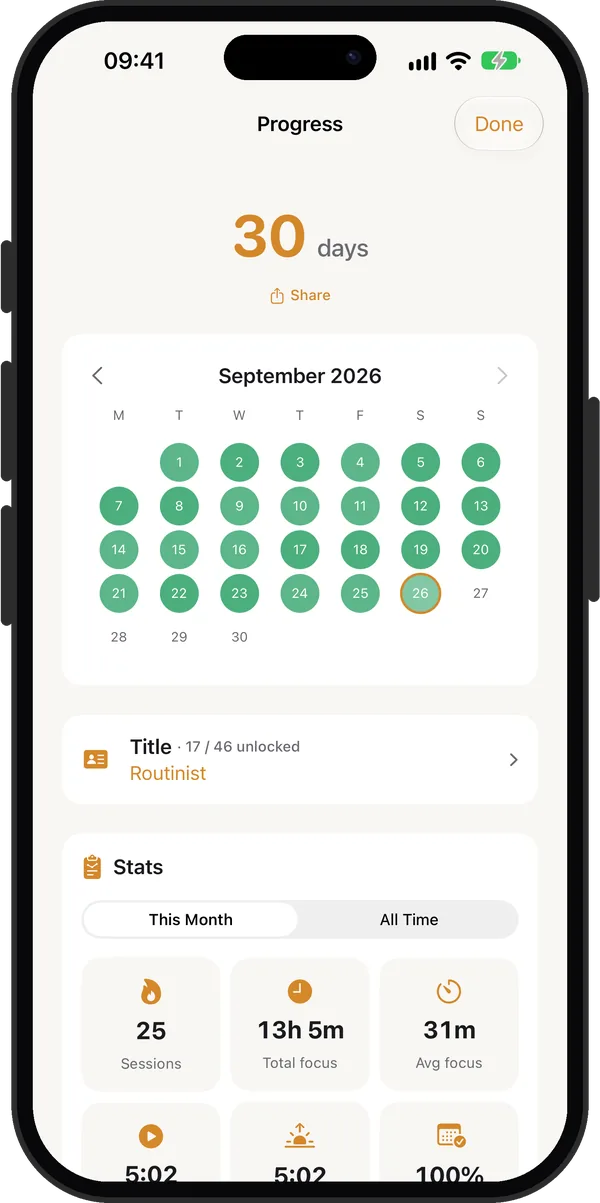
| Streak widget | Home Screen, small | Your streak count and a grid of the last weeks, from the Monday four weeks back through today. Orange is a finished day, blue is a freeze, faint is a missed day. |
| Next Alarm widget | Home Screen, small | Your alarm time in your phone's 12 or 24 hour format, or No alarm when it is off, plus a bar for each of the last 7 days. |
| Focus Timer | Lock Screen and Dynamic Island | A ring and a live countdown. Paused sessions show the time left and a pause mark. |
| Wind Down | Lock Screen and Dynamic Island | The same countdown with a moon icon and an icon for the sound you chose: Fireplace, Space Ship, Storm, Waves or White Noise. See Wind Down. |
| Start Routine control | Control Center, Lock Screen, Action button | Opens Rise on your morning focus session. |
In the Dynamic Island the timer has three forms: a timer icon with the time in the compact view, a ring alone in the minimal view when another app shares the island, and the expanded view from step 3 above.
The widgets and Live Activities have no purchase lock of their own. The focus session they mirror follows your access, so check focus sessions for what each plan allows.
When it is the right tool
You check the time and the alarm in one glance
Put Next Alarm on the Home Screen and you see tomorrow's time every time you unlock, so you notice a wrong time before bed, not at 6:30.
You want the streak in view without opening an app
The Streak widget turns a habit into something you pass dozens of times a day. A gap in the grid is hard to ignore.
You switch apps during a focus session
Looking something up mid-session is fine, and on an iPhone with a Dynamic Island the compact countdown keeps the time left in view while you do. It supports the plan in not checking your phone in the morning.
The phone is locked on the desk
Lock the phone and the Lock Screen panel still counts down, so you do not wake the screen to learn how long is left.
You start the routine from anywhere
Add the Start Routine control to Control Center or the Action button. It opens Rise on the session, which helps when the app is buried in a folder. For a routine that lasts, read build a morning routine that sticks.
Limits
- Small widgets only. Both widgets support the small size and nothing else.
- No buttons in the Live Activity. You pause, resume and end sessions inside Rise, not from the Lock Screen or the island.
- Not a live clock. The widgets refresh when your alarm or streak changes and at midnight, so they show the state as of the last change.
- No Dynamic Island on every iPhone. On phones without one, you get the Lock Screen panel only.
- The control has conditions. Start Routine only starts a session when onboarding is done, today's routine is not finished and you are inside your morning window.
- Needs Live Activities allowed. If you turn them off for Rise in iOS, the timer still works but the panel does not appear.
- Needs iOS 26.2 or later. Rise runs on iOS 26.2 and newer, including iOS 27.2, the latest update on Apple's release list (26 October 2026).
Frequently asked questions
Is there an alarm widget for iPhone?
Yes. Rise has a Next Alarm widget for the Home Screen. It shows your alarm time, or No alarm when the alarm is off, and a bar for each of the last 7 days.
How do I add an alarm widget to my iPhone?
Touch and hold an empty spot on the Home Screen, tap Edit, then Add Widget, search for Rise and pick Next Alarm. It comes in the small size.
Does Rise work with the Dynamic Island?
Yes, on iPhones that have one. A running focus session or Wind Down session shows a countdown there, with an expanded view when you touch and hold it. On other iPhones the countdown shows on the Lock Screen.
What is a focus timer Live Activity?
It is a live panel iOS shows outside the app while a session runs. In Rise it shows a ring and the time left, and it updates without you opening Rise.
Can I pause the focus timer from the Lock Screen?
No. The Live Activity only displays the countdown and the paused state. You pause, resume or end the session inside Rise.
Why is no timer showing on my Lock Screen?
Live Activities may be off for Rise in iOS, in which case the timer still runs in the app but no panel appears. A session also has to be running, since Rise removes the panel when it ends.
Sources
See your streak on your Home Screen
Get Rise on the App StoreMore features
Log your wake-up time and mindful minutes in Apple Health
Rise Pro saves your wake-up time and each finished focus session of 5 minutes or more to Apple Health as mindful minutes.
A morning focus session that starts when your alarm stops
A focus timer that opens right after your alarm, 5 to 120 minutes in steps of 5, also available any time with Focus now.
iCloud backup for your settings, streak and journal
Your settings, streak and journal back up privately to your own iCloud, free, and restore in one tap on a new iPhone.